

Most of the time, Koinly’s API sync just works. But when it does not, or when an exchange no longer exists, a Koinly CSV import is your fallback, and it gives you complete control over exactly what lands in your account. The catch is that CSV import is less forgiving. One broken header row or a date format Excel quietly mangled, and the whole file bounces.
This walkthrough takes you from export to clean import without breaking your cost basis along the way.
Disclaimer: This guide is for informational purposes only. Always consult a qualified CPA regarding your specific situation.
API vs CSV: Which Should You Use?
API connections are convenient and stay current automatically, but they can fail, lose authorization, or pull partial history. If a sync is broken, the Koinly not working fixes cover that first. CSV is manual but total: what is in the file is what Koinly gets.
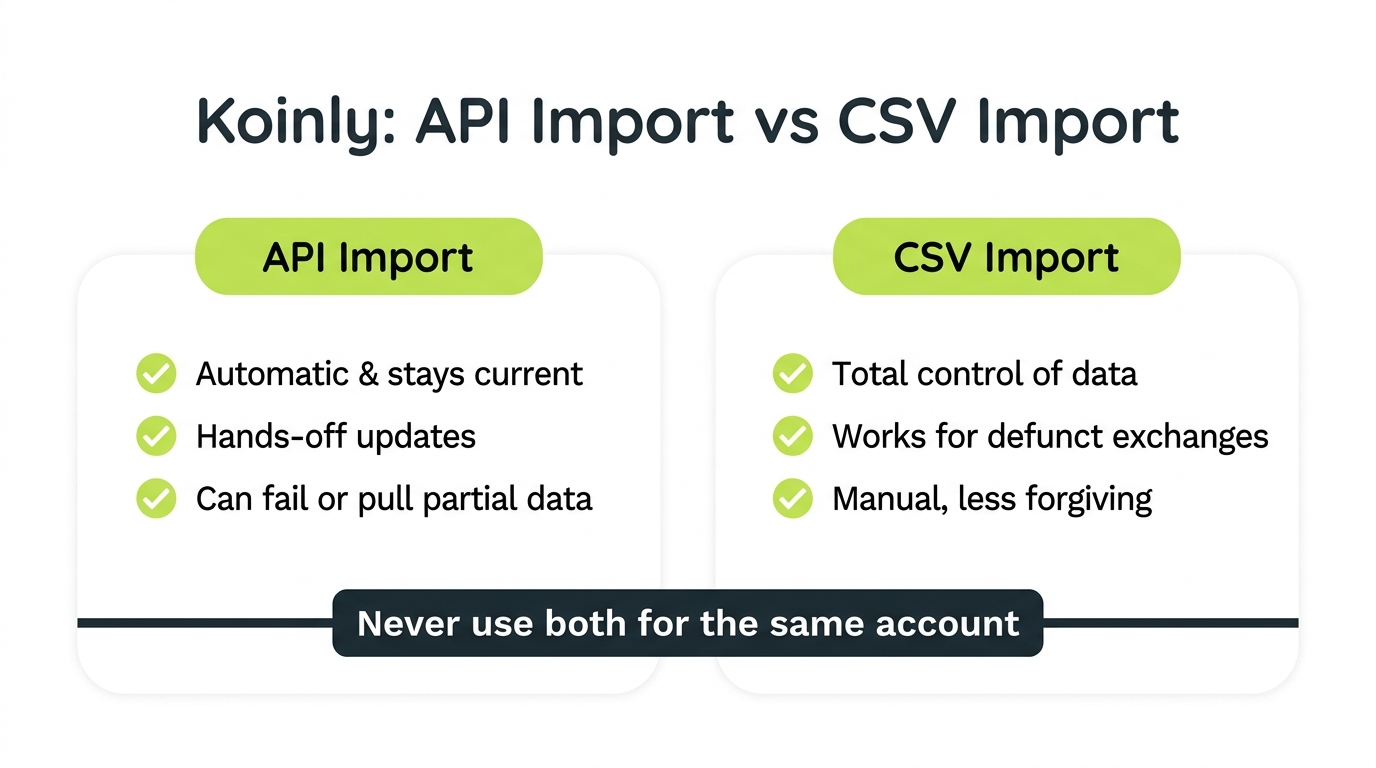
Use API when: the exchange supports it, the connection is stable, and you want hands-off updates. Use CSV when: the API fails, the exchange is defunct, the API pulls incomplete data, or you need to control exactly what imports.
Step-by-Step: Export and Import a Clean CSV
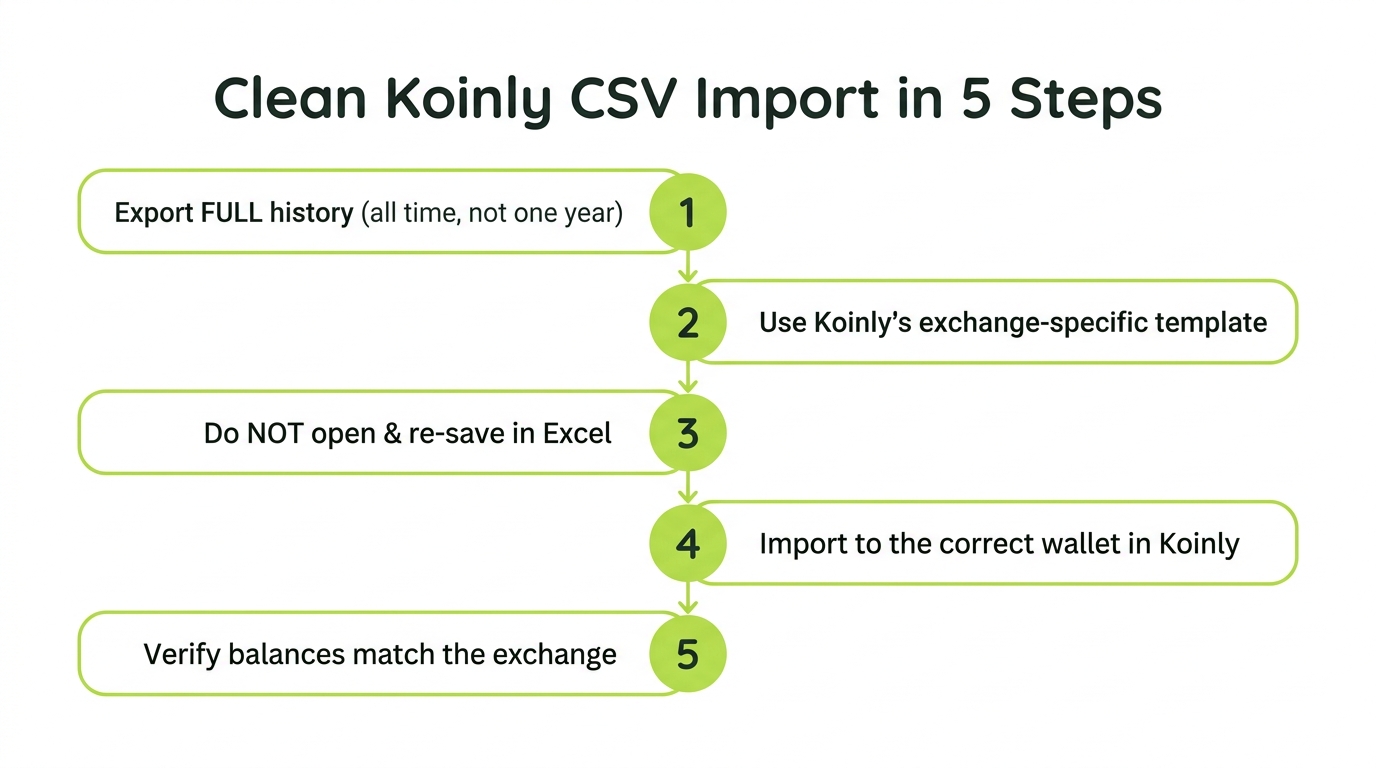
Step 1: Export the Complete History From Your Exchange
In your exchange account, find the transaction or tax export. Set the date range to all time, not the current tax year. Partial history is the number one cause of broken cost basis, because the original buys get left out.
Step 2: Use the Koinly Exchange Template Where It Exists
Koinly supports dedicated CSV formats for major exchanges. In Koinly, choose the specific exchange and follow its import instructions so the columns map correctly. Only fall back to the generic Koinly template when no exchange-specific one exists.
Step 3: Do Not Open and Re-Save the File in Excel
This trips up more people than anything else. Excel can convert dates to a different format, strip leading zeros, and turn long transaction IDs into scientific notation. Any of these breaks the import. If you must inspect the file, use a plain text editor, or import it exactly as exported.
Step 4: Import Into Koinly
Upload the file under the correct wallet or exchange in Koinly. Watch for the import summary: how many transactions were read, and any rows it skipped or flagged.
Step 5: Verify the Totals
After import, check that the balances match what the exchange actually shows, and confirm there are no new $0 cost basis warnings. If balances are off, the export was probably incomplete, so re-export the full range. New basis errors? Follow our guide on fixing wrong Koinly cost basis.
Fixing Common CSV Import Errors
- “Invalid format” or rejected file: You likely have an XLSX renamed to CSV, or a broken header row. Re-export a true CSV.
- Dates read wrong: The file was opened and re-saved in Excel. Re-export and import untouched.
- Duplicates after import: You imported twice, or mixed API and CSV. Remove one source.
- New $0 cost basis warnings: The export missed earlier history. Export all-time and re-import.
When Your Exchange Has No Clean Export
Defunct exchanges and obscure platforms are the hard cases. You export whatever transaction detail you can get, then map it to Koinly’s generic template by hand. It is solvable, just tedious, and it is exactly the kind of reconciliation work a crypto CPA does routinely. If you are staring at a messy export from an exchange that no longer exists, that is a reasonable point to bring in a Koinly expert and hand it off.
Key Takeaways
- Bottom line: reach for CSV when the API fails or the exchange is gone, and treat it as a precision tool that rewards doing a few things in the right order
- The two rules that prevent most disasters: never import the same account by both API and CSV, and always export the complete history rather than a single tax year
- Protect the file itself. Opening and re-saving in Excel silently corrupts dates and long numbers, so import it exactly as exported
- Always verify balances after import, and if anything looks off, re-export the full all-time history before you start hand-editing
- Decision point: a tangled export from a defunct exchange is exactly the kind of job worth handing to a crypto CPA instead of fighting alone
Frequently Asked Questions
When should I use CSV import instead of API in Koinly?
Use CSV when an API connection fails or is unavailable, when an exchange has shut down and you only have an export, or when the API pulls incomplete history. API is more convenient and stays current, but a clean CSV gives you complete control over exactly what gets imported. Never use both for the same account at once, or you will create duplicates.
Why is my Koinly CSV import failing?
The most common causes are using the wrong CSV format, an edited file that broke the column headers, a file that is not true CSV (for example an XLSX renamed to CSV), or date and number formatting the importer cannot read. Re-export a fresh file, do not open and re-save it in Excel, and use Koinly's exchange-specific template where one exists.
Can I edit a CSV before importing it into Koinly?
You can, but be careful. Opening a CSV in Excel can silently change date formats, drop leading zeros, or convert long numbers to scientific notation, all of which break the import. If you must edit, use a plain text editor or Google Sheets with the columns kept as text, and never change the header row.
How do I fix duplicate transactions after a CSV import?
Duplicates usually mean you imported the same activity by both API and CSV, or imported the same file twice. Remove one of the sources, or use Koinly's duplicate detection to merge them. Going forward, pick one import method per account and stick with it.
Does CSV import preserve cost basis in Koinly?
Yes, if the CSV includes the full history, including the original buys. Cost basis breaks when a CSV only covers part of the timeline, so Koinly sees coins with no purchase behind them. Always export the complete history for an account, not just the most recent tax year.
What if my exchange has no Koinly export option?
Export the most detailed transaction history the exchange offers, then map it to Koinly's generic CSV template. If the data is messy or the exchange is defunct, this manual mapping is exactly the kind of reconciliation a crypto CPA handles routinely. It is fiddly but solvable.